For everyone
AESA Transport and AESA Drive on App Store and Google Play
Dispatchers get orders, tracking and chat on the phone, drivers report shipment status from AESA Drive. How to install the apps and connect a driver by code.
Published
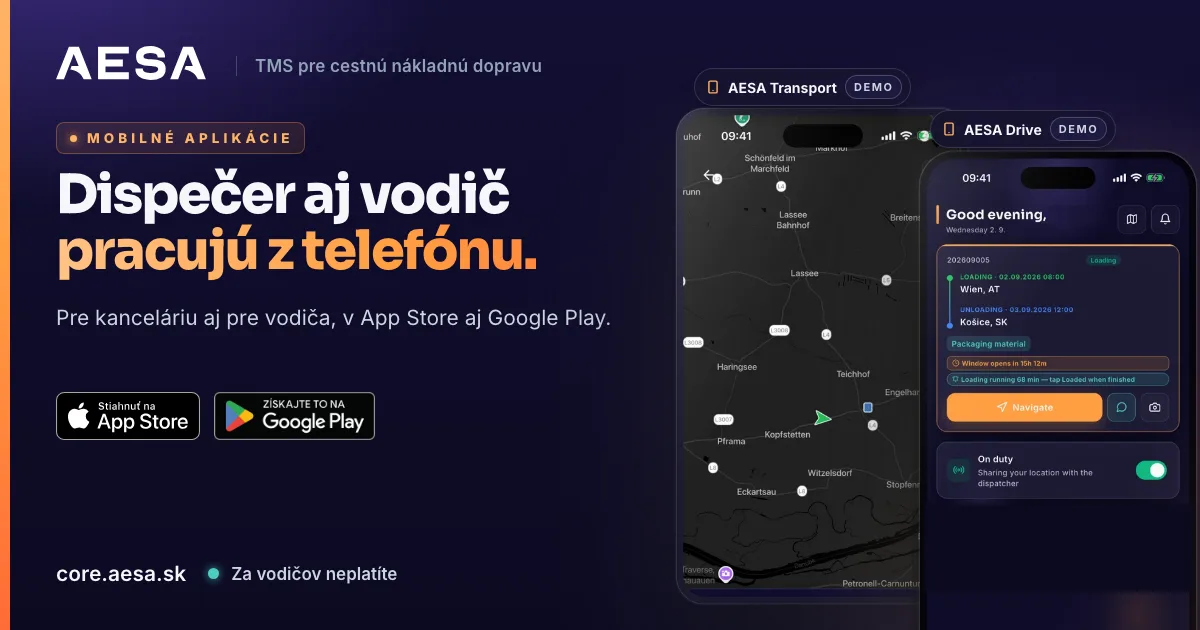
AESA Core TMS is a TMS for road freight. Your orders, carriers and drivers are now on your phone as well. AESA Transport, the app for dispatchers, and AESA Drive, the app for drivers, have been available on the App Store and Google Play since 9 October 2026. A dispatcher can respond away from the desk, and a driver reports shipment status with a single tap.
Two apps, each for a different role
- AESA Transport is for the office: the owner, administrator, dispatcher, team member and observer. You sign in with the same e-mail and password as on the web.
- AESA Drive is for the driver. You connect your own drivers, and other carriers' drivers who haul your shipment, with a single code.
Both apps work with the same data as the web. What you change on the phone, your colleague sees on the web right away, and the other way round.
You can download them here:
- AESA Transport: App Store · Google Play
- AESA Drive: App Store · Google Play
AESA Transport: dispatching from the phone
The bottom bar has Dashboard, Orders, Live tracking, Messages and More.
- Orders. Search covers all of the company's orders, not just the loaded page. You create a new order with the + button, including several loadings and unloadings.
- Live tracking. The Map / List switch shows drivers' positions on a map or a list of tracked shipments. From the shipment detail you can mark it as urgent, notify the driver, reassign it to another driver or cancel it.
- Messages. Chat with colleagues and carriers. The order you are discussing stays pinned at the top of the conversation.
- More. The directory of carriers, customers and contacts, the Freight exchange, Fleet with drivers and vehicles, statistics and settings.
- Notifications. Some things you can handle right in the notification: on the exchange you confirm a price or send a counteroffer, and at unloading you mark the shipment as delivered.
Prices are visible only to those you give the right to, in the app just as on the web. Some actions stay on the web: publishing an offer on the exchange, the order PDF and sending it by e-mail.
AESA Drive: the driver reports shipment status
The driver moves the shipment forward with one large button that always offers only the next step: accept the trip, on route to loading, at loading, loaded, on route to unloading, at unloading, delivered. If the driver is waiting at the border, they report At customs. You see every change in the TMS right away, also as a system message in the shipment chat.
- CMR and POD photos. When the status changes to Loaded, the app asks for a CMR photo, and at Delivered for a POD photo. The driver taps Take photo & confirm and the document is attached to the order.
- Shipment chat. The driver sends a message, a photo or a one-tap quick reply, for example "On my way" or "Stuck in traffic".
- Navigate. Opens the stop in Google Maps, Waze or Apple Maps.
- Planned break. The driver marks lunch, refuel or rest, and you see how long the break lasts.
- No signal. Status changes and messages are saved on the phone and sent automatically once the signal returns.
The driver never sees prices in the app, neither the customer price nor the carrier price. You do not pay for drivers.
Location from the phone, no GPS unit
The driver's phone sends the location, so you do not need a GPS unit in the vehicle. The AESA Drive home screen has an ONLINE / OFFLINE switch: ONLINE means the driver shares the location with the dispatcher. During an active shipment tracking switches on by itself and switches off after the Delivered status. The driver gets a message about it.
You send the customer a tracking link. They see the location and status of the shipment without signing in.
How to connect a driver
- In the menu Fleet → Vehicles, click Add vehicle. Only the licence plate is required.
- In Fleet → Drivers, click Add driver. Fill in the driver's first name, last name and e-mail, choose a vehicle and click Generate code. You can also invite a driver from AESA Transport under More → Fleet → Drivers.
- The driver receives a six-digit pairing code by e-mail, and it is shown to you too, only once. It is valid for 6 hours and the driver has 5 attempts to enter it.
- The driver downloads AESA Drive, taps I have a pairing code and enters their e-mail and the code. The app shows which company is inviting them. They choose a password and tap Activate account.
Hauling with another carrier? When adding, choose Carrier driver. The carrier does not have to register. Their driver enters the code and you see the shipment status anyway.
How to get started
You create the company account on the web, and registration takes a few minutes. Then you sign in to AESA Transport with the same e-mail and password. You can try it for 14 days free, no card needed. After that it costs €30 per month, and each additional colleague €10. You do not pay for drivers. We verify every company within 24 hours, so there are no anonymous companies on the platform.
You will find a detailed step-by-step guide in the guide, in the chapter Mobile apps. The pages for freight forwarders, manufacturers and carriers show how the apps fit into your work.