For everyone
Freight exchange and load board in AESA Core TMS
How to find a free load with filters and a radius, how to post one, who sees it, how to agree the price and what happens after the deal. Step by step.
Published
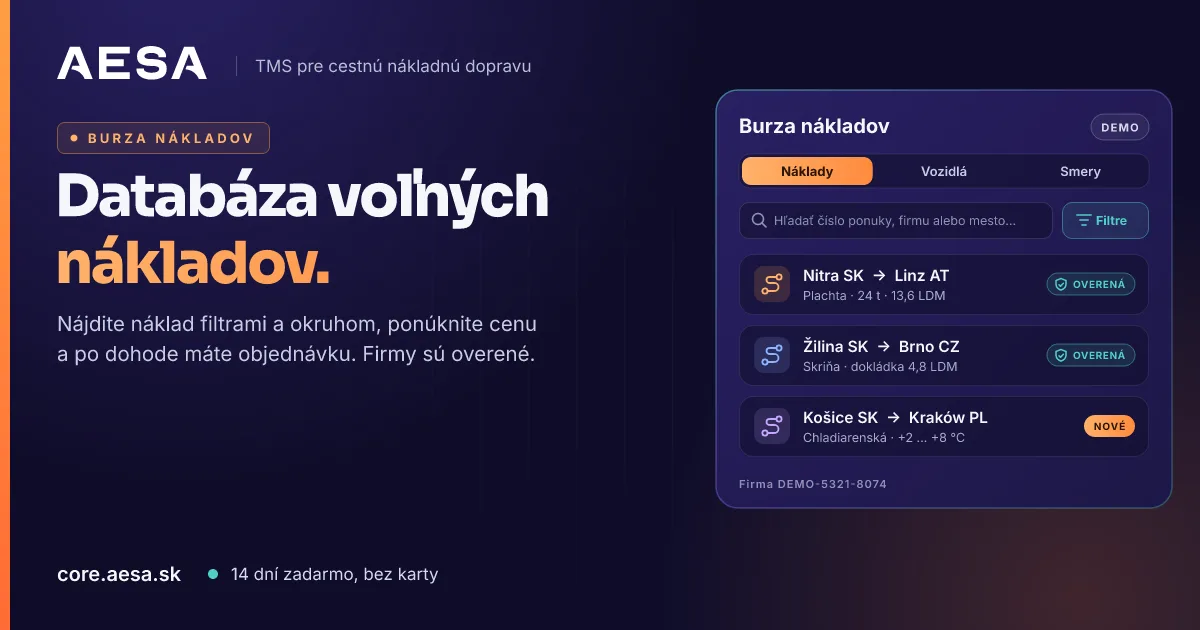
The freight exchange in AESA Core TMS is a load board where you search for loads with filters and a radius around a city and agree the price directly with the company that posted it. It is part of the TMS, the system for orders, carriers and drivers: in the menu, click Exchange → Freight Exchange and you see loads from companies we have checked. The exchange is ramping up, and offers grow with every company that joins. Here is how it works for a carrier looking for loads and for a freight forwarder or manufacturer posting them.
How to find a free load
The freight exchange is a table: loading, unloading, cargo, the price or "negotiable", and the company that posted the offer. Narrow it down like this:
- Search. In the field above the table, type an offer number, a company name or a city. It also works without accents: "kosice" finds Košice.
- Filters. The Filters button opens a panel with five parts: Route (loading and unloading countries, postcode), Dates (Today, Tomorrow, This week, Next week or your own range), Cargo (weight, LDM, pallets, full truck or part load, ADR), Vehicle (several body types at once) and Price and partner (for example Shipper rating and Verified companies only).
- Places and radius. With the Places button you enter a loading or unloading city exactly or with a radius of +25, +50, +100 or +200 km. You can search up to five places at once.
- Sorting and count. You sort the offers, for example newest first or by loading date, and you see the count "Results: N".
Active filters stay above the table as chips; the cross switches them off. Offers from other companies that arrived since your last visit have an orange dot.
Save your search and the notification comes to you
Once the filters fit your usual route, click Save search and give it a name, for example "SK → DE curtainsiders". Saved searches are chips above the list, up to ten of them. When a load that matches is posted, you get a notification in the app. You turn on email with the bell on the chip: right away for each match or as a daily digest once every morning.
Lanes: where companies drive regularly
Even when there is no load on your route right now, the exchange shows which companies drive it regularly. In the exchange header there is a Loads | Vehicles | Lanes switch. Under Lanes you see the country and the first two digits of the postcode for loading and unloading, the vehicle, the number of transports in the last 90 days and the company. The customer, price, exact address and date are never shown.
Click I'm interested, optionally pick a body type, write a note and click Send interest. The company sees your company name, city, your name and your note. When it posts a load on that lane, you get a bell notification. Interest is not a price offer; you offer a price on a specific load.
If you are a company that gives out transports, an administrator switches on Show our regular lanes on the exchange in Settings → Orders. It is off by default. A lane appears only from 5 transports in 90 days.
How to post a load
- In Exchange, click Add load.
- Fill in the route, dates, cargo and body type. For each stop you can also enter the company name and street. Others do not see them; they are revealed only after the deal is confirmed and they prefill the order.
- Choose who sees the offer: Public or VIP.
- Choose how the price is shown: Hidden — negotiable (default), Target price or Fixed price.
- Click Publish offer.
AI can fill in the form from an email, PDF or photo, as the article AI lists your load on the exchange from email, PDF or photo shows. If you have an order without a carrier, click ⋯ next to it in the Orders list → Find a carrier on the exchange and the form is prefilled from the order.
Who sees your offer
- A public offer is on the exchange for every company that uses it. They see the city, postcode and country of each stop, dates, cargo, the price or "negotiable", your company name, rating and the contact person's name.
- A VIP offer is seen only by companies you choose, for example your group of regular carriers in VIP Exchange → Selected partners. You can set the offer to go public for everyone after 30 minutes up to 4 hours if your partners do not take it.
- Hidden until the deal is confirmed: the company name at the stop, the street and the exact location. That is why the map in the offer detail shows the city centre.
- Never public: price proposals from other companies and chat content. Phone and email are not in the offer; you write to the shipper in the chat.
Bidding and negotiation
Click a row and the offer detail opens with the tabs Route, Cargo, Shipper and Negotiation. On the Negotiation tab, click Bid a price, enter the amount and, if you like, a message.
Negotiation takes turns. The shipper accepts your proposal, clicks Reject or sends a Counter-offer. You answer a counter-offer by accepting it, with your own Counter-offer or with Withdraw bid. A proposal without a reply is valid for 48 hours. You find all your proposals across offers in My price proposals, including whether it is your turn or the other side's.
What happens after the deal
- When someone accepts the price, a deal is created with the status Awaiting confirmation.
- The other side clicks Confirm deal. It has 24 hours, at the latest until loading. Otherwise the deal is cancelled and the offer goes back on the exchange.
- After confirmation, the company names at the stops, the streets and the exact location are revealed.
- In My deals, the shipper clicks Create order in the deal row. The order gets a number from the shipper's own numbering and the carrier is saved to their address book. If the offer was created from an order, the row shows Add carrier to order instead and no new order is created.
- The carrier assigns a vehicle and driver from their Fleet in the deal detail.
- After the transport, either of the two sides clicks Mark as completed and both are invited to rate the cooperation with 1 to 5 stars.
Who you are dealing with
- We check every company. We approve each company within 24 hours, and only then can it work on the exchange.
- The Verified company shield goes to a company whose VAT number is valid in VIES, or to a non-VAT-registered company whose business ID we have approved. In the offer detail you also see the chips Member since and Completed exchange deals.
- Ratings come only from partners after a completed deal. Each side rates once. Ratings cannot be bought or changed later.
- Report offer is in the footer of another company's offer detail. AESA support reviews the report and the shipper does not learn who sent it.
Where to find more
How carriers offer free vehicles and how you send them a load is explained in the article A carrier's truck is free? Send it your load. What AESA Core TMS gives carriers is shown on AESA Core TMS for carriers, and for freight forwarders on AESA Core TMS for freight forwarders.
Set up your company account in a few minutes. Try it for 14 days free, no payment card required.