Carrier
How many km is the transport? Road route on the exchange
The "≈ N km" distance in an exchange offer is the length of the road route through all stops. Where to find it and how to use it to judge a load.
Published
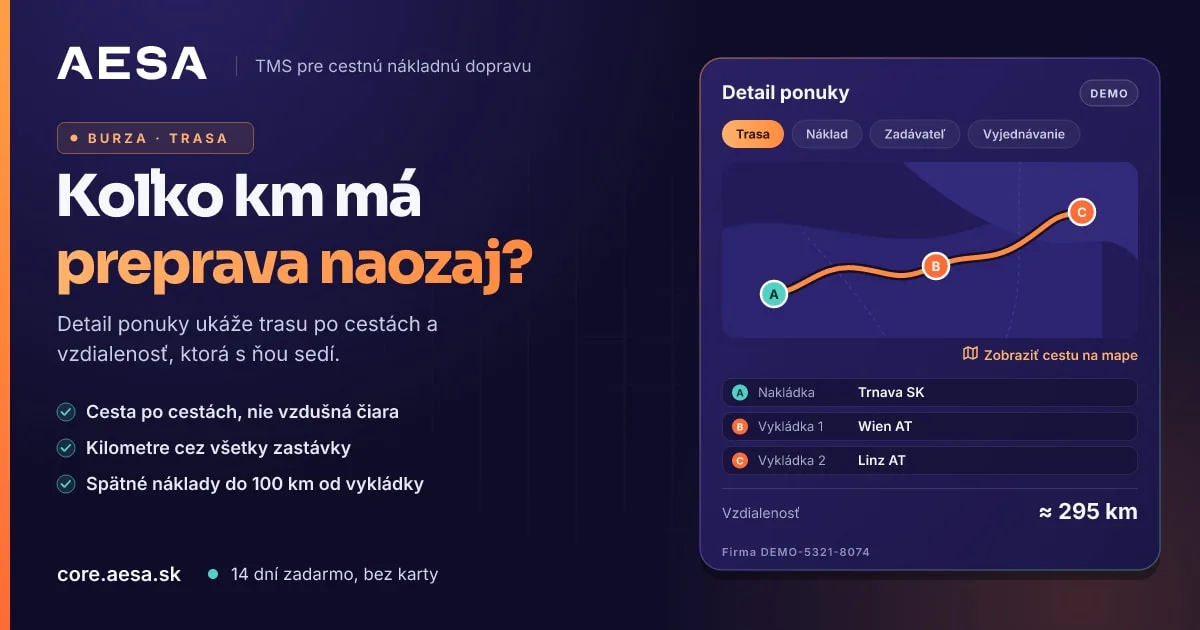
In an offer on the AESA Core TMS freight exchange you see how many kilometres the transport is on real roads, and the map shows the route through all stops, not a straight line. AESA Core TMS is a system for orders, carriers and drivers, and the freight exchange is part of it. This guide answers the questions a dispatcher asks about every offer: how many kilometres it is, which way it goes and whether it is worth it.
How many kilometres is the transport really?
As many as the Distance row shows on the Route tab of the offer, for example "≈ 240 km". It is the length of the driving route on roads from the first loading through all other stops to the last unloading, in the order the shipper entered them.
- The kilometres are calculated from the city, postcode and country of the stops. The exact address stays hidden until the deal is confirmed, which is why the number starts with "≈".
- You see the same number under the load in the exchange list, so you can compare offers before you open them.
- When the shipper changes the places, the old route is dropped and a new one is calculated.
What does the map in the offer show?
The map at the top of the Route tab shows where the transport goes and which way:
- A solid line follows the road route through all stops.
- Stops are marked A, B, C… in driving order, and loadings have a different colour from unloadings.
- The countries of the stops are highlighted on the map.
- If the route has not been calculated yet, for example for an older offer, the map shows a dashed arc. It only shows the direction between the stops, not the road.
Below the map, every Loading and Unloading is listed with its place, time window and a small map of the area.
How do I see the route on an interactive map?
- In the menu, click Exchange → Freight Exchange.
- Click the offer row. The offer opens on the Route tab.
- Below the map, click Show the road route on the map.
An interactive Google map opens with the route through all stops. Zoom in with the buttons and move the map when you want to see which motorway or border crossing the route takes.
How do I use the route to judge whether an offer is worth it?
The Route tab puts together what you need for the decision:
- Kilometres and time windows. Compare the distance with the loading and unloading times. You see straight away whether the time for the transport is realistic.
- Price per kilometre. When the offer has a target or fixed price and the route is at least 50 km, the header of the offer and the list show the price per kilometre next to the price. It uses the same kilometres as the map. It is not shown when the price is negotiable.
- Return loads. Below the stops is the Return loads section: up to five loads on the exchange that load within 100 km of this offer's unloading, with "N km from unloading". You see right away where the truck can go after unloading. Click one to open it.
- Matching vehicles. If you are looking for a carrier, the Matching vehicles section shows up to ten free vehicles from the vehicle exchange that fit the dates, body type, capacity and equipment. Each shows "N km from loading", and "heads to the unloading country" when the vehicle is going where the load is going.
Return loads and matching vehicles are shown for offers that are active on the exchange.
Can I message a colleague about an offer?
Yes, for your company's offers. In your own offer, the Shipper tab has an In charge row with your colleague's name and a Message colleague button. The person in charge is whoever took the offer over, otherwise whoever added it. The same name is clickable in the list in the Shipper column.
A click opens the usual company chat with your colleague, with the offer pinned above the message: number, route and dates. The price is not in it and nothing is sent automatically: you finish the message and send it. If you are in charge of the offer yourself, the row says You.
For another company's offer, you message the shipper by clicking the name in the Contact person row on the same tab. A chat about this offer opens.
Can anyone see the exact loading address?
No, not until the deal is confirmed. The route and the kilometres are calculated only from the public details of each stop: city, postcode and country. The street and the company name at the stop are never used for the calculation and are revealed to the other party only after the deal is confirmed.
Where to find more
How you search for loads with filters on the exchange, offer a price and what happens after the deal is explained in the article Freight exchange and load board in AESA Core TMS. The route of an accepted order, with the status of each stop reported by the driver, is described in Route & goods: what the dispatcher sees in the order detail. More November changes are in What's new in AESA Core TMS: November 2026. What AESA Core TMS gives carriers is shown on AESA Core TMS for carriers.
Set up your company account in a few minutes. Try it for 14 days free, no payment card required.