Freight forwarding
Route & goods: what the dispatcher sees in the order detail
The driver reports the status of every stop; total weight, loading metres and ADR classes are calculated for you. The Route & goods tab in AESA Core TMS.
Published
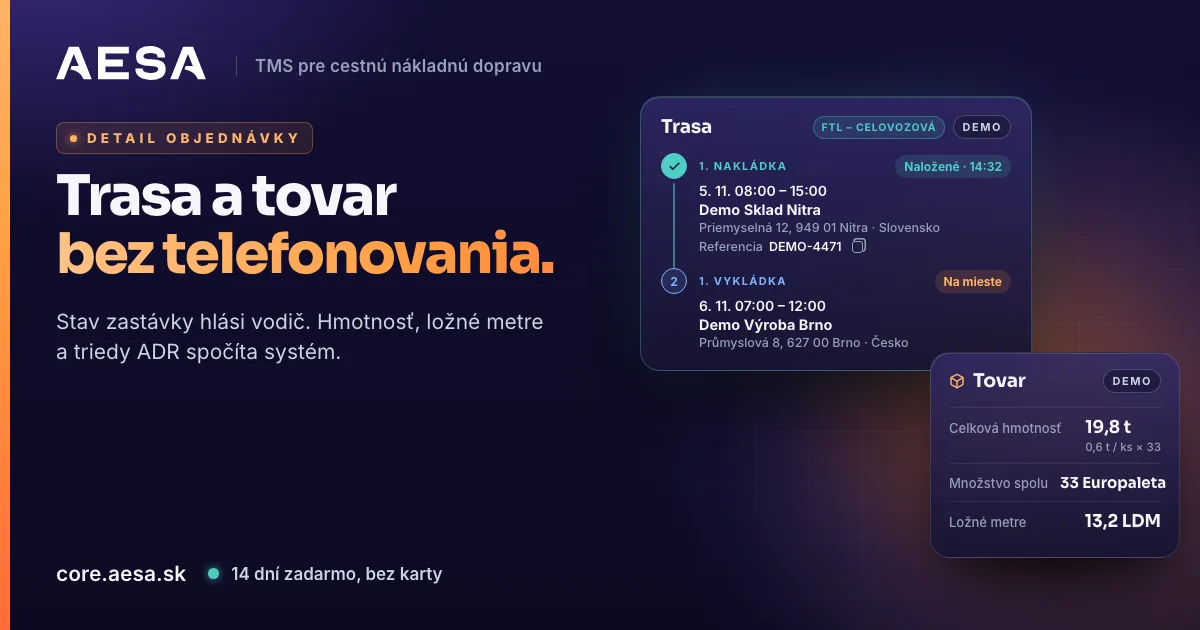
You can see whether the goods are loaded in the order detail without calling the driver, and you no longer work out the total weight or loading metres by hand. In AESA Core TMS, the system for orders, carriers and drivers, this is the Route & goods tab. It follows the questions a dispatcher asks: what is being moved and with what, where and when, what state each stop is in, and how much there is.
Transport type in one word
The first card, Transport and vehicle, shows what the customer ordered. The transport type is spelled out: FTL – full truck or LTL – part load. Hover over the label and it explains the difference:
- FTL (Full Truck Load) – the whole vehicle for this load only; the carrier loads nothing else.
- LTL (Less Than Truckload) – the goods use only part of the vehicle; the carrier also carries other customers' goods.
Next to it you see the vehicle type, the required trailer type and the customer's requirements. Anything not entered in the order is shown as not set. The system does not fill in guesses.
The route as a timeline
Stops are listed in driving order: all loadings first, then all unloadings, exactly as the driver sees them. For each stop you get:
- the time window in the local time zone of the place, so an unloading in another country shows the time that applies there,
- the company and address with the country flag,
- the reference with a copy button, for the warehouse gate or an e-mail,
- the contact person on site; the phone number opens with one click,
- the instructions for the carrier, highlighted so nobody misses them.
The driver reports the stop status
When the driver follows the transport in the AESA Drive app, each stop shows the status the driver reported: On site, Loading or Unloading, and once finished Loaded or Unloaded with the time, for example Loaded · 14:32. A completed stop gets a green mark on the timeline. "Are you loaded yet?" is answered at a glance, not with a phone call.
The driver joins the transport with a code, and you do not pay for drivers. If the carrier has sent you a tracking link from its own GPS, you will find it in the same tab below the route.
Goods by loading place
Goods are grouped by the loading places where they are actually loaded. An unloading only refers to them, so no item is counted twice. For each item you see:
- the name and the quantity with its unit, for example 33 Euro pallets,
- the weight per piece and the total weight of the line, i.e. weight × quantity,
- dimensions, packaging and pallet exchange,
- the ADR class for dangerous goods.
The difference between weight per piece and weight per line is a common source of errors: 0.6 t per pallet across 33 pallets is 19.8 t, not 0.6 t. The system does the multiplication for you.
Totals below the goods
Below the table are the totals for the whole order:
- Total weight – the sum of weight × quantity for all items. If an item has no weight, the total says so with the note Only items with a weight.
- Total quantity per unit, pallets and pieces separately.
- Loading metres (LDM) – calculated from the goods dimensions for a 2.4 m wide trailer, including layers for stackable goods. A full trailer is 13.6 LDM. If the goods have no dimensions, the system does not invent LDM and shows The goods have no dimensions.
- ADR classes of all items in one place, so you know before assigning a carrier whether the vehicle and the driver need ADR equipment and a certificate.
Where to find it
- On the web at app.aesa.sk, open Orders and click an order.
- In the detail, click the Route & goods tab, right after Parties.
- At the top is Transport and vehicle, below it the Route timeline and further down Goods with the totals.
The tab is available on the web now. In the AESA Transport app it arrives in the same form with the next update in the App Store and Google Play.
Read more
How the driver joins a transport and reports its status is explained in AESA Transport and AESA Drive on App Store and Google Play. How to store the carrier's GPS link is described in Carrier GPS access stored right on the order. How a freight forwarder brings orders, carriers and tracking into one system is shown on AESA Core TMS for freight forwarders.
Create your company account in a few minutes. Try it free for 14 days, no payment card needed. We verify every company within 24 hours, so there are no anonymous companies on the platform.