For everyone
What's new in AESA Core TMS: November 2026
November: the Will it fit? check, a carrier from the exchange straight into the order, regular lanes, bank statement matching and regional holidays.
Published
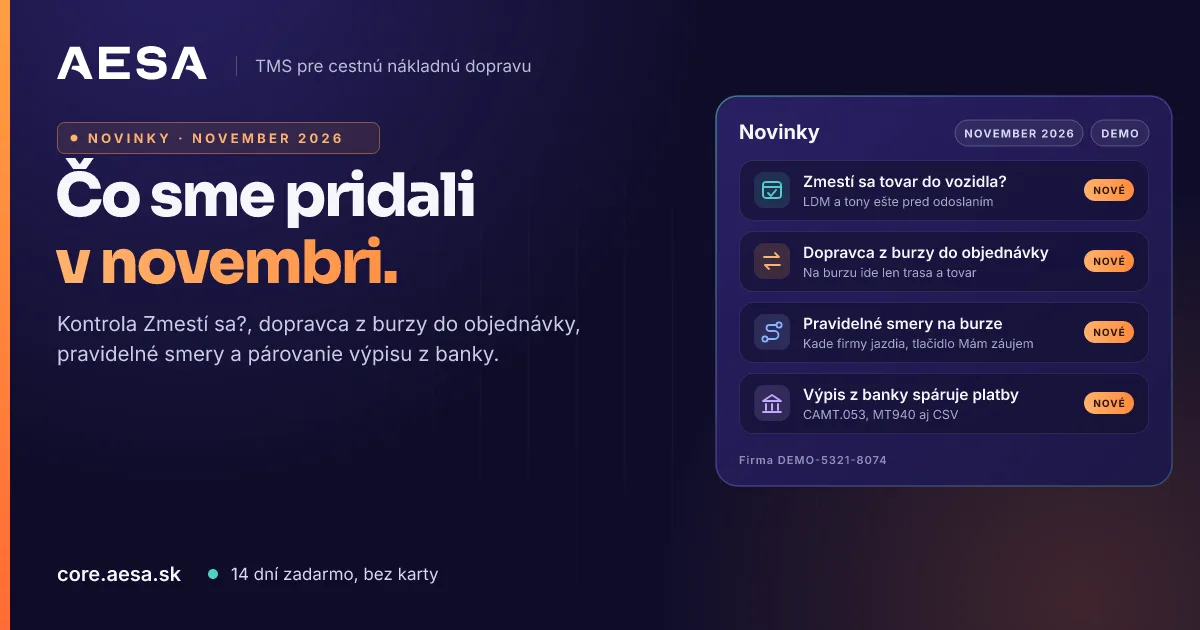
In November AESA Core TMS, the system for orders, carriers and drivers, received changes that make it easier to enter a transport, find a carrier and check payments. Here are the most useful ones, with the place in the app where you find them. The guide at core.aesa.sk/howtouse is updated with every one of them.
Orders
- Will the goods fit the vehicle? Before you send the order you know whether the goods fit the carrier's vehicle, without counting pallets and metres by hand. In the new-order wizard, step 2, you choose Stacking for each goods item (1× to 4×; 1× means the goods must not be stacked). In step 3, in the Transport type card, you click Will it fit?: pick the vehicle type, its dimensions and payload are prefilled and you can overwrite them to match the real vehicle. After Recalculate you see how many loading metres (LDM) and tonnes the goods take of the vehicle's capacity, and a green "Fits" or an orange "Does not fit" with the reason (length, width, height or weight). For a part load the window shows only LDM and weight. Save to order keeps the result. It is an aid and never blocks the order.
- Find a carrier on the exchange straight from the order. An order without a carrier goes to the exchange in one step, and the agreed carrier is added to the same order. In the Orders list you click the three dots ⋯ next to the order → Find a carrier on the exchange. A load form opens, prefilled with the route and goods; only the route and goods go to the exchange, never the customer or the customer's price. In the order detail, on the Parties tab next to the carrier, you see the state of the offer. Once you confirm the deal, you click Add carrier to order in Exchange → My deals, and no new order is created. For a customer who does not allow subcontracting, you switch on Subcontracting forbidden in the customer card, and that customer's orders cannot be put on the exchange.
Exchange
- Regular lanes. Even when there is no load on the exchange right now, you see which companies regularly drive which lanes, and you can let them know you are interested in their loads. The exchange header has the switch Loads | Vehicles | Lanes. Under Lanes you see the country and postcode area (first two digits) of loading and unloading, the vehicle, the number of transports in the last 90 days and the company. The customer, price, exact address and date are never shown. With I'm interested you send the company your interest, optionally with a body type and a note. When the company publishes a load on that lane, you get a bell notification. Interest is not a price offer; you offer a price only on a specific load.
- Show carriers where you drive. So that carriers contact you on their own, the company administrator switches on Show our regular lanes on the exchange in Settings → Orders. It is off by default and nothing is published by itself. A lane appears only from 5 transports in 90 days, is recalculated every night and disappears from the exchange as soon as you switch it off. Who signs up for your lanes, you see right under Lanes, and administrators get a bell notification.
Payments
- A bank statement matches payments to orders. Instead of marking payments one order at a time, you upload a bank statement and the app finds which payment belongs to which order. Nothing is written to an order without your confirmation. In the order detail, on the Payments card, you click Match from bank statement; the same window opens from Settings → Integrations → Banks → Upload statement. Most payments are matched from a CAMT.053 (XML) statement, which you find in your internet banking; MT940 and CSV also work, files up to 2 MB and 2,000 transactions. Payments are shown in three parts: Certain matches (both the order number and the amount match) are confirmed with one button, Suggestions you check and confirm, and payments To assign manually you assign by the last 3 to 4 digits of the order number, or ignore. Incoming money is recorded as Received from customer, outgoing as Paid to carrier, also for a partial payment.
- Invoice number and variable symbol. On the Payments card, both the customer and the carrier have an Invoice row with the invoice number and the variable symbol (payment reference). With them the app matches a payment most reliably. The statement is uploaded by a colleague with the rights for payments and prices. The AESA Transport app shows the payment status too; statements are uploaded on the web.
Dashboard
- Regional holidays and substitute days off. The Holidays in Europe card on the Dashboard also shows holidays that apply in only part of a country, and substitute days off, so you know in advance where a warehouse will be closed. A regional holiday (Germany, Spain, France) has a dashed frame around the country and the region codes after the name, for example "Corpus Christi (BW, BY, HE, NW, RP, SL)". The truck icon appears only where a truck driving ban also applies that day. When the law moves a holiday from the weekend to a working day (for example Bulgaria, the United Kingdom, Latvia, Serbia), the name is followed by "substitute day off". The regions are also listed in the bell notification that arrives before the holiday.
AESA Drive for drivers
- The driver sees whether dispatch can see them. At the top right of the transport detail there is a GPS chip: green when the location is being sent, orange with a weak signal (the location is sent once the signal is back) and red when GPS is off. One tap tells the driver in one sentence what dispatch can see. The status card shows a step bar, for example "Step 5 of 9", and the phone vibrates briefly when the status is saved.
- Swipe to decline. A driver cannot decline a transport by mistake with a single tap. After tapping Decline, the bottom button turns into a "Swipe to decline" track, and the transport is declined only when the red handle is dragged to the end. The cross next to the track takes the driver back.
Business Cases
- Every case has an owner. It is always clear which colleague runs a business case. Whoever creates a case is its owner; you change it in the case detail on the Record card by choosing Owner, and the colleague gets a notification. The Record card also shows who created the case and when, and who changed it last. Above the list there are quick filters Mine, No owner and Overdue.
Other changes
- Search in long filter lists. The country picker and other lists with eight or more options have a search field with a magnifier at the top. Type the start of the name, for example "slo", and Slovakia and Slovenia remain. It also works without diacritics and with the country code.
- What the Route & goods tab shows in the order detail is described in the article Route & goods.
Everything above is in the app today. A new company gets 14 days free, no payment card: app.aesa.sk/register.