Freight forwarding
Shipment chat: unread, read time and message archive
The chat looks the same on the web, in AESA Transport and in AESA Drive. You see when the driver read a message and can search older conversations.
Published
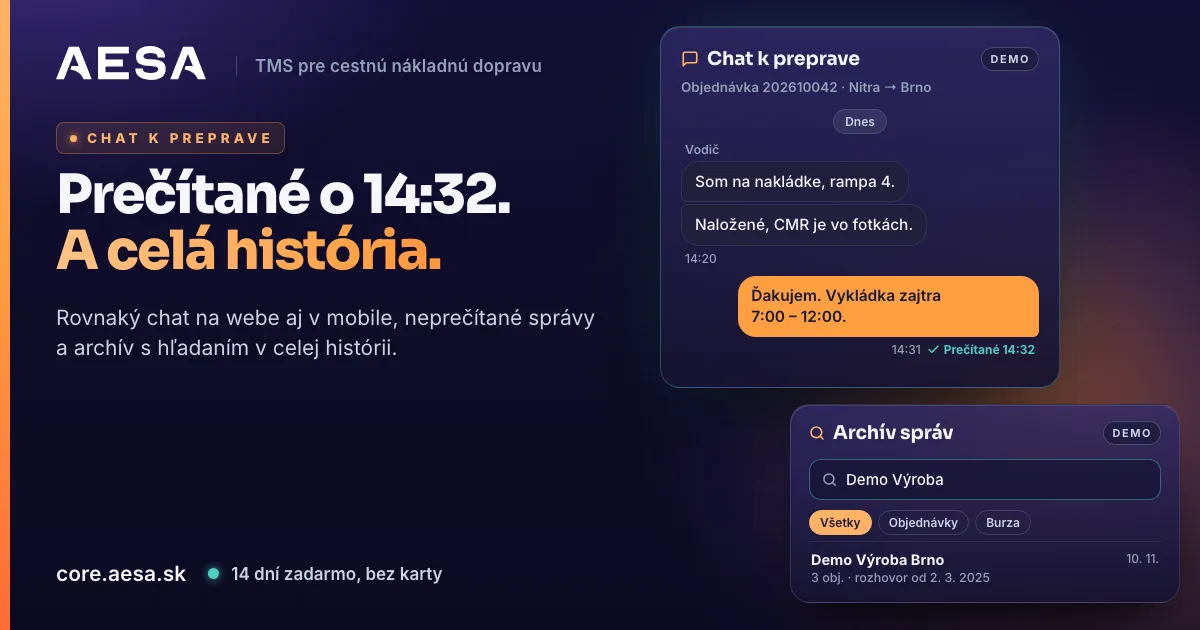
A dispatcher needs to know two things: whether the driver has seen a message, and where to find what was agreed with whom. From now on, the chat in AESA Core TMS tells you both. Next to a message for the driver you see the time the driver read it, and an old conversation can be found in the full history by name or company.
One chat look on the web and on mobile
Messages look the same everywhere: in the Messages panel, in the Message archive module and in the chat on an order.
- Your messages are solid orange bubbles on the right, the other party's messages are calm bubbles on the left.
- Several messages in a row from the same person (within 5 minutes) are merged into a group. The name appears only at the top, and the time and the confirmation sit under the last message of the group.
- Individual days are separated by a pill saying Today, Yesterday or the date.
On the web this look applies from 11 November 2026. Messages will look the same in the AESA Transport app for the dispatcher and the AESA Drive app for the driver, which will get it in the next update. If you switch between a computer and a phone, you do not have to get used to two different chats.
Read with a time: you know the driver has seen the message
In the chat on an order, a green Read at label with a time appears under the last message the driver has read, for example Read at 14:32. It means the driver has seen this message and all the earlier ones.
There is no need to call to ask whether the driver saw the new unloading address or the changed deadline. When the label is not there, you know the message is still waiting for the driver, and you can get in touch another way.
The Read at label with a time replaces the phone call "did you see my message?".
Unread messages go out as soon as you see them
The number next to the chat icon in the top bar tells you how many unread messages you have. In the chat on an order, the number of unread messages for that transport is shown.
- The count clears as soon as you open the conversation and see the message, without waiting for the server's reply.
- When another message arrives while the conversation is open, that one is marked as read too.
- A message you have already seen does not count as unread again after you leave the chat.
The badge therefore shows only what is really waiting for you.
Message archive: search the full history
You can find older communication in the Message archive module in the main menu. On the left is the list of your conversations, on the right the selected thread, read-only.
- A person's name and a company name are searched across the full history, including a conversation from years ago. At least 3 letters are enough.
- A full order number is searched across the full history, a part of it in the conversations that are already loaded.
- You can also search by the number and route of an exchange offer.
- The All · Orders · Exchange switch narrows the list to conversations about orders or about the exchange.
- You can download a conversation for a chosen period as a PDF, at most one month per export.
The archive fills immediately when you open it. The chat on an order becomes read-only 30 days after delivery, so the agreement stays on the order as evidence.
Countries in an order: Kosovo, Andorra, Monaco
Kosovo (dialling code +383), Andorra, Monaco, San Marino and Gibraltar have been added to the list of countries, with names in all 6 languages of the app.
- A stop in a country outside the list is no longer shown as Slovakia. You see it under its real name.
- E-mails about the transport status name the country in the language of the e-mail.
- In the long list of countries, just start typing. Type "slo" and Slovakia and Slovenia remain.
Where to find more
Everything about the Messages panel, the archive and message translation is in the manual, in the chapter Chat and the Aesa assistant. The chat with the driver during a transport is described in the chapter Shipment tracking. How to download both apps and connect the driver with a code is explained in AESA Transport and AESA Drive on App Store and Google Play. The stop status reported by the driver is shown in Route & goods: what the dispatcher sees in the order detail.
How a freight forwarder brings orders, carriers and tracking into one system is shown on AESA Core TMS for freight forwarders.
Create your company account in a few minutes. Try it free for 14 days, no payment card needed. We verify every company within 24 hours, so there are no anonymous companies on the platform.