Freight forwarding
Order documents on the web and in the mobile app
CMR, carrier invoice and customer order stay with the order. Drag them in on the web or take a photo in AESA Transport. A step-by-step guide.
Published
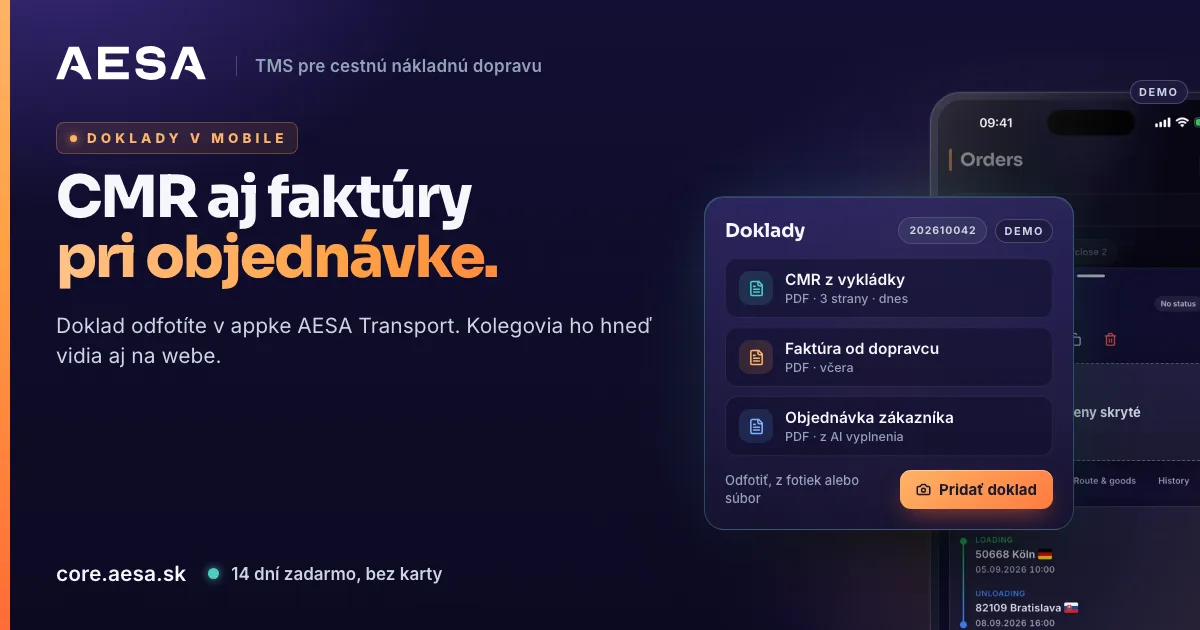
In AESA Core TMS, the system for orders, carriers and drivers, the CMR, the carrier invoice and the customer's order sit right next to the order. "Which shipments are still missing a CMR?" takes one click to answer. You can upload a document from your computer or from your phone: in AESA Transport, the app for dispatchers, you simply take a photo of it.
What changes for your team
Transport documents usually end up in email attachments and in one colleague's folder. In the TMS the whole team has them in one place, attached to the order they belong to. A colleague who takes over an order does not have to search for anything or forward it.
Uploading a document on the web
- Open Orders. Each order row has a Documents column with a documents icon. Click it.
- The Order Documents window opens. First choose the document type, for example CMR from unloading or Carrier invoice.
- Drag all files into the window at once, for example three photos of a CMR. With several photos you choose between One document with pages and Separate documents.
- Click Upload. You do not have to type a name: the document is saved as "type · order number".
You can upload PDF, JPG, PNG, DOC and DOCX files up to 10 MB each. The document appears in the list straight away, and a coloured icon for its type is added to the order row. Your colleagues see it too.
Uploading a document from your phone
In the AESA Transport app, open the order. Under Related, tap Documents. You see the list of documents with their type, date and the name of the colleague who uploaded them. Tap a document to open it right in the app.
- Tap Add document.
- Choose the source: Take a photo, Choose from photos (several pages at once) or Choose a file (PDF, Word or an image).
- Choose the document type. Name and note are optional.
- Tap Upload.
A document uploaded on the phone is visible to your colleagues on the web right away. With ⋯ next to a document you change its name, type and note, or delete it. Documents arrived in AESA Transport version 1.0.2. It is already on Google Play and will reach the App Store once Apple approves it.
A CMR from unloading closes the shipment
CMR from unloading is the only type that changes the shipment status. Once it is uploaded, the shipment switches to Delivered on its own. The app tells you this as soon as you pick the type, before you upload. If you only want to file an unloading document while the shipment is still running, choose another type, such as Other.
An overview without digging through your inbox
- Above the orders table there is a Document Filter. Choose CMR from unloading and you see the shipments whose CMR has arrived. Carrier invoice shows what is ready for bookkeeping.
- When AI fills in a new order from the customer's PDF, the same file is attached automatically as a Customer order document once you save.
- When you email the order to the carrier, you tick which documents to attach. The customer order is never attached for the carrier, because it contains the customer price.
Who can upload documents
The administrator sets the rights under Team → Permissions: Order documents – view and Order documents – upload. A colleague who can only view documents gets an explanation in the app of whom to ask.
Where to find more
All document types and their colours are described in the handbook, chapter Order documents. How to download both mobile apps and connect a driver with a code is explained in the article AESA Transport and AESA Drive on the App Store and Google Play. How a freight forwarder brings orders, carriers and tracking together in one system is shown on AESA Core TMS for freight forwarders.
Create your company account in a few minutes. Try it free for 14 days, no payment card needed. We verify every company within 24 hours, so there are no anonymous companies on the platform.