Freight forwarding
Report a transport problem in one click
Report a delay, damaged goods or a missing CMR straight from the order. Colleagues are notified at once, and documents and driver photos sit with the order.
Published
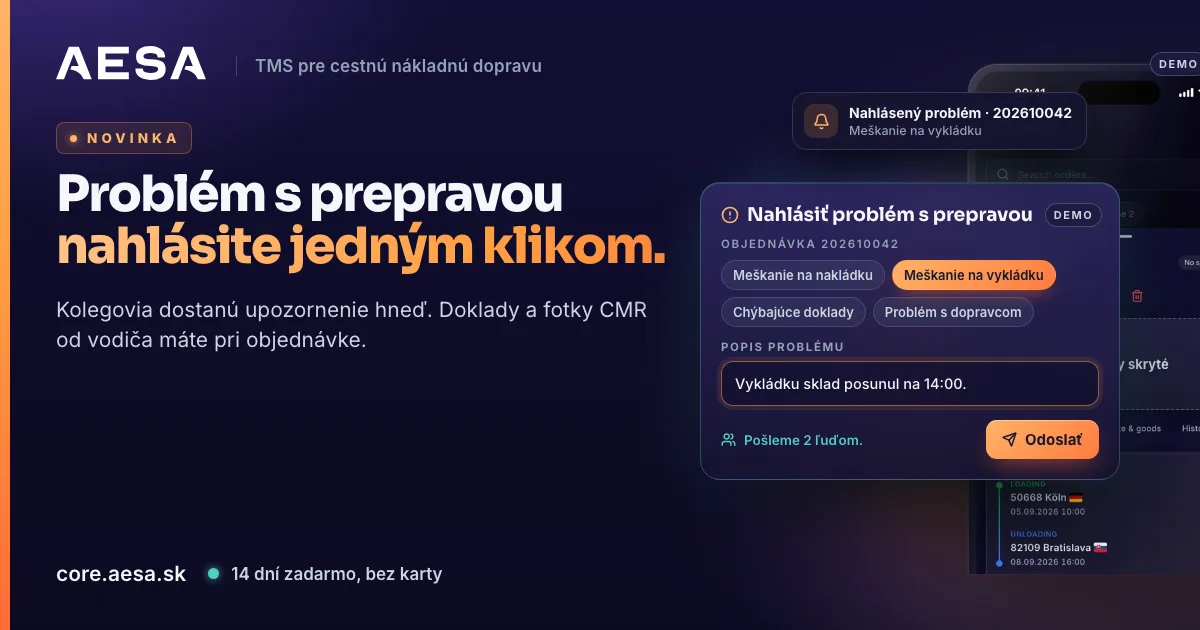
In AESA Core TMS, the system for orders, carriers and drivers, you report a transport problem straight from the order. The colleagues who handle problems are notified at once, in the app, on their phone and by email. The same order detail also holds the documents and the CMR photos from the driver, so nobody has to search for the paperwork needed to solve it.
What changes for your team
When unloading is postponed or goods arrive damaged, the information often gets lost in a phone call between two people. In the TMS it reaches exactly the colleagues your company chooses, and it stays recorded with the order. A colleague who takes over the shipment in the morning sees what happened and who reported it.
Reporting a problem on the web
- Open Orders and click an order. Its detail opens.
- In the row of icons at the top, click the exclamation mark labelled Report a transport problem. In the orders table you find the same option in the ⋯ menu of the row.
- Choose a category: Delay at loading, Delay at unloading, Damaged or missing goods, Missing documents (CMR, delivery note), Carrier issue, Customer issue or Other.
- In Problem description, write what happened. Your colleagues receive exactly this text.
- Before you send it, the window shows how many people the report will go to. Click Send.
After sending you see a confirmation such as "Problem sent to 2 people". The report is recorded in the History tab of the order detail with the category, the description and the name of the person who sent it.
Reporting a problem from your phone
In the AESA Transport app, open the order and tap the exclamation mark at the top. Choose a category, write a description and tap Send. It works the same way as on the web, and colleagues see the history entry on the web and in the app alike. On the web at app.aesa.sk the feature is available right away; in the AESA Transport app it arrives with the next update on the App Store and Google Play.
Who receives the report
The recipient gets a notification in the bell in the app, on their phone and by email, in the language they have set. Clicking the notification takes them straight to the entry at the order.
- Under Settings → Notifications, in the section Reported transport problems, the administrator decides whether reports go to everyone with the Receive reported problems permission or only to selected people.
- Permissions are set under Team → Permissions. At the start, the Report a transport problem right is held by the administrator, the manager and the user. The Receive reported problems right is held by the administrator and the manager, so reports do not go to the whole office.
- If nobody can receive the report yet, the window tells you before you send it. The problem is then still recorded in the order history.
Documents and driver photos in the order detail
When a transport problem comes up, you usually need the CMR or a photo of the goods. That is why the order detail now has a Documents tab, right after Route & goods.
- Open the order detail and click the Documents tab.
- Under Order documents you see every document with its type, date and the name of the colleague who uploaded it. The filter above the list shows a single type, for example CMR from unloading, or All.
- With Add document you upload a new document without leaving the detail.
- For a shipment tracked through the driver app, the section Photos from the driver follows below. The photos the driver took in the AESA Drive app are split into CMR, POD (proof of delivery) and Other.
So when someone reports "Missing documents" or "Damaged or missing goods", you can see at once whether the driver has already sent the CMR or a photo from unloading. The AESA Transport app has the Documents tab in the order detail as well.
Where to find more
How to upload a document on the web and photograph it on your phone is explained in the article Order documents on the web and in the mobile app. All document types are described in the handbook, chapter Order documents. How a freight forwarder brings orders, carriers and tracking together in one system is shown on AESA Core TMS for freight forwarders.
Create your company account in a few minutes. Try it free for 14 days, no payment card needed. We verify every company within 24 hours, so there are no anonymous companies on the platform.